Lots of people have created Power BI reports, using interactive data visualizations to explore and communicate data. When Power BI was first created, it was used in situations that weren’t ideal because that was all we had as far as cloud-based tools in the Microsoft data stack. Now, in addition to interactive reports, we have paginated reports and notebooks. In this post, I’ll discuss when notebooks might be an appropriate visualization tool.
High-level comparison
If you haven’t looked into Fabric notebooks for data visualization, the table below offers a high-level comparison to Power BI reports. There are edge cases where you could do something successfully in either tool, but generally certain personas and use cases lean towards one or the other.
Feature
Power BI
Fabric Notebooks
Purpose
Designed for interactive dashboards and reports
Used for data exploration, transformation, and advanced analytics
Visuals
Drag-and-drop visuals, prebuilt charts
Code-based visuals using Python (Matplotlib, Seaborn) or Spark libraries
Interactivity
Highly interactive, slicers, drill-throughs
Limited interactivity; static charts unless using specific libraries
Best For
Business reporting and storytelling
Data exploration, debugging, machine learning/AI
Where do notebooks shine?
Notebooks are not usually the best interface for business dashboards and scorecards, but there are other situations where they might be better than a Power BI report:
Data dumps (can save to OneLake or blob storage when output contains a lot of rows)
Detailed static chart images
Maps (interactive or static)
Highly customized charts and uncommon chart types
High-density visuals
Adding advanced statistics, AI, or ML on top of a base dataset before visualization
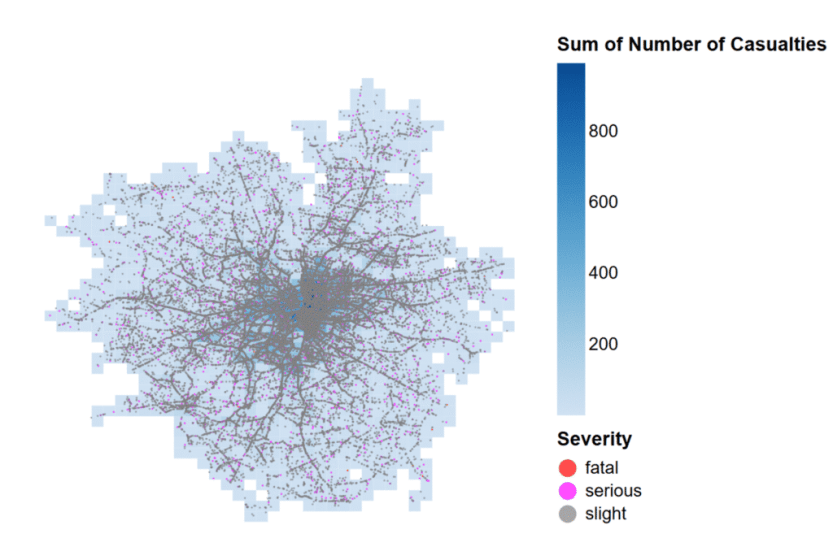
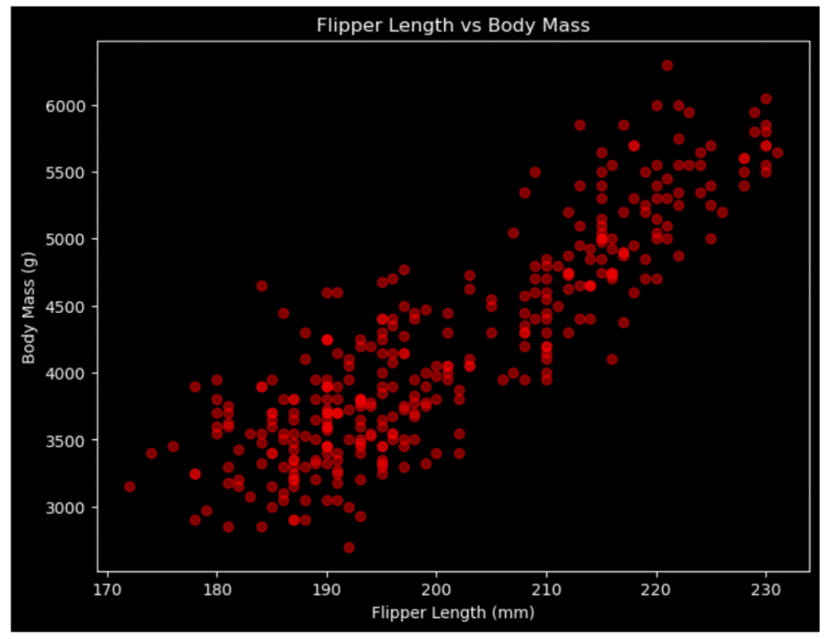
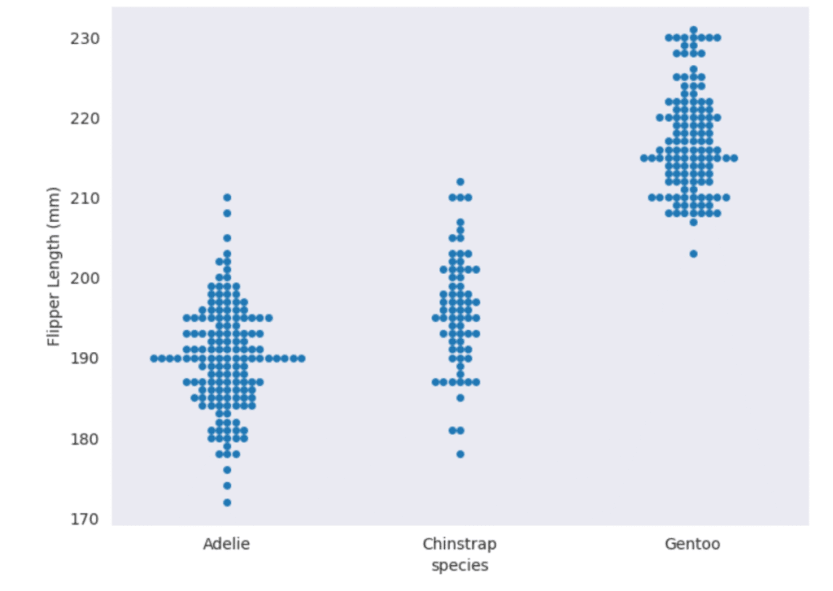
You can create a table (or tables) of data and output them to an easily accessible location, whether that is downloading the data directly from a notebook or exporting to OneLake. You don’t need to create a visual first, just to export the DataFrame contents. There are lots of great mapping libraries available for Python, so if you can’t achieve what you need in an Azure Map visual and don’t want to pay for ArcGIS or another embedded service, you may consider creating your map in a notebook. Check out Plotly and DataShader for examples. A map created using Altair in a Fabric notebook created by Kerry Kolosko Many Power BI visuals have a default of 3,500 data points allowed. Some visuals, such as the Azure Map, allow up to 30,000 data points by default. If you have a situation where the data should not be aggregated or sampled, a python visual may be a good option. A scatterplot created using Matplotlib in a Fabric notebook created by Kerry Kolosko Sometimes we want to create highly customized visualizations that are just not achievable in the core or free custom Power BI visuals. While you can usually make what you need in Deneb, it may require a lot of effort or you may be introducing a skillset that your team doesn’t have or has chosen not to emphasize. If your team already knows Python, you can explore creating visuals in a notebook and outputting them as SVGs to include in documents, presentations, or websites. A swarmplot created using Seaborn in a Fabric notebook created by Kerry Kolosko And while it’s possible to add AI or ML to your data using Power Query, it is often easier to use Python libraries to add these capabilities and then visualize the data immediately after.
Interactivity
Python visuals can offer some interactivity, depending on the library. It is often only within one visual. For instance, you might have a drop-down for selecting a category which filters a bar chart. Or you might use a lasso tool to select an area of a map. What is less common is to create a set of multiple charts in a single output that all interact with each other. That is one area where Power BI shines and requires little to no effort, since the default is for visuals to interact with all other visuals on the report page.
Remember your audience
While the visualizations produced by a notebook may be great for your audience, the notebook interface itself might not be ideal for consumption. Data engineers are often used to notebooks in other contexts, but the average business analyst might not want to use a notebook. This may lead to creating the visualization in one tool and consuming it in another. You’ll have to examine the context to and use case to decide if that is appropriate.
Could a notebook really be easier than a drag-and-drop interface?
If writing Python code seems unattainable, a notebook might not be for you. But I’d like to share a couple of thoughts about what has made Python easier for me.
The libraries
After learning about the concept of a nullity matrix, I set out to create one in Power BI for a Workout Wednesday challenge. After experimenting with core visuals and not liking the results, I switched to Deneb. I struggled a bit to get what I needed in Deneb and after an hour or so, I sought out help. The Deneb visual ultimately worked fine, but it was a lot of effort to get there. There is a free library to do this in Python. Once you have a DataFrame with the data you want to include, it’s two lines of code to create the visual. A nullity matrix created using the missingno library created by Meagan Longoria
AI Coding Assistants
With AI assistants to help us write Python code, the barrier to getting our desired visual output in a notebook is possibly lower than ever. You can integrate AI assistants like GitHub Copilot or Claude Code into VS Code to have a more seamless development experience outside of a browser, if you prefer. Just be sure that your use of AI coding assistants meets any organizational and/or personal requirements around information security and intellectual property.
More posts on data viz in notebooks
I’ve planned at least a couple more posts to help people get started using notebooks for data visualization. Stay tuned! The post Data Viz in Fabric Notebooks first appeared on Data Savvy.
https://procuresql.com/wp-content/uploads/2025/11/pythonnullitymatrix.avif7461024Meagan Longoria/wp-content/uploads/2024/05/Data-Architecture-as-a-Service-with-ProcureSQL.pngMeagan Longoria2025-11-24 01:30:312026-02-12 19:27:02Data Viz in Fabric Notebooks
Have you ever added a visual to a Power BI report page and published the updated report only to realize you forgot to adjust a related bookmark? It’s very easy to do. The Power BI user interface doesn’t allow you to determine which visuals are included in a bookmark that includes only selected visuals. And it takes at least 4 clicks to open the Bookmarks and Selection tabs, and then select a bookmark to see which visuals are visible or hidden when the bookmark is selected. If you’d rather not have to click around and guess, you can parse the JSON definition of your report, or use a Fabric notebook to get information about the bookmarks in a PBIR-format report that is published in the Power BI service. What I’ll demonstrate below is a great check to perform before publishing to a higher environment (e.g., test, stage, QA, prod, whatever you call your non-dev environments).
Code walkthrough
If you aren’t using an environment with Semantic Link Labs already installed, you must do that first as shown below.
%pip install semantic-link-labs
Here I import and alias the report module from Semantic Link Labs as well as pandas.
# Imports
import sempy_labs as labs
from sempy_labs import report

import pandas as pd
Next I need to create a report wrapper for the report in which I want to review the bookmarks.
The main function used here is the Semantic Link Labs list_bookmarks function, which returns a list of all bookmarks in the selected report. The list_bookmarks function returns a DataFrame with the following columns.
What we see in the results above is a report with 3 bookmarks. The Sales Only bookmark includes all 7 visuals on the Dashboard page. Two of the 7 visuals are hidden. The Details bookmark includes all visuals on the Drill Details page, both of which are visible. The US2014 bookmark includes 6 visuals on the Dashboard page. The three bookmarks from the report being analyzed
Combining list_bookmarks and list_visuals
What we see in the results above is a good start, but we need to add more information about the visuals referenced by the bookmarks. We can use the list_visuals function to get more info on each visual and then merge (join) the bookmark and visual data together for a more complete picture.
First, I obtained the list of all visuals in the report. Then I narrowed down the column list so I only kept what was helpful for this use case. Then I got the list of bookmarks. I merged the visuals and bookmarks by performing and inner join on the Visual Name (which is really the unique GUID for the visual). After merging, I dropped the Page Name column that came from the bookmarks DataFrame and renamed the Page Name column that came from the visuals DataFrame. Then I reordered the columns to make it easier to use the final table. Finally, I sorted the values by bookmark, visual type, and then the x and y coordinates of the visual. That gives me the following table. This gives me a better picture of which visuals are included in each bookmark, as well as the type of visual, the location and size of the visual, and whether it is hidden in the bookmarked state.
What’s Missing?
While we can infer some of the configured properties of a bookmark based upon what is returned here, it would be nice to have it explicitly returned. When we look at the JSON that defines the bookmark, we can see:
the bookmark display name (the name we see in the bookmarks pane)
the bookmark name (the GUID for the bookmark)
the page name (the GUID for the page)
the GUIDs for the target visuals
whether data is included in the bookmark
if data is included, the filter expressions
if data is included, slicer type and state
if data is included, the sort order for a visual
if data is included, drill location
if data is included, the spotlight mode of a visual
What we cannot get from the Semantic Link Labs function is the visual-level info. We don’t know the filter expressions, slicer state, sort order, drill location, and spotlight mode. We also can’t tell whether the bookmark includes data or whether the bookmark includes all visuals or selected visuals. We can sort of infer whether all visuals are selected by comparing the visuals on the page to the visuals included in a bookmark, but it would be great to have an easier way. I have logged an enhancement request on Github to ask that this information be made available via Semantic Link Labs. If you need to deep dive into your bookmarks to ensure every filter and sort order is correct, the current Semantic Link Labs solution is not for you. But if you just need to check that the bookmarks are there and which visuals are included and/or hidden, this works nicely.
https://procuresql.com/wp-content/uploads/2025/11/bookmarks.avif170184Meagan Longoria/wp-content/uploads/2024/05/Data-Architecture-as-a-Service-with-ProcureSQL.pngMeagan Longoria2025-11-05 11:45:002026-02-12 19:31:19Check Power BI Bookmarks with Semantic Link Labs